
Download WiFi Explorer – Wi‑Fi scanner, network analyzer, troubleshooting tool
Overview
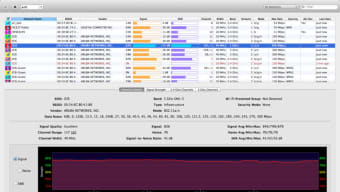
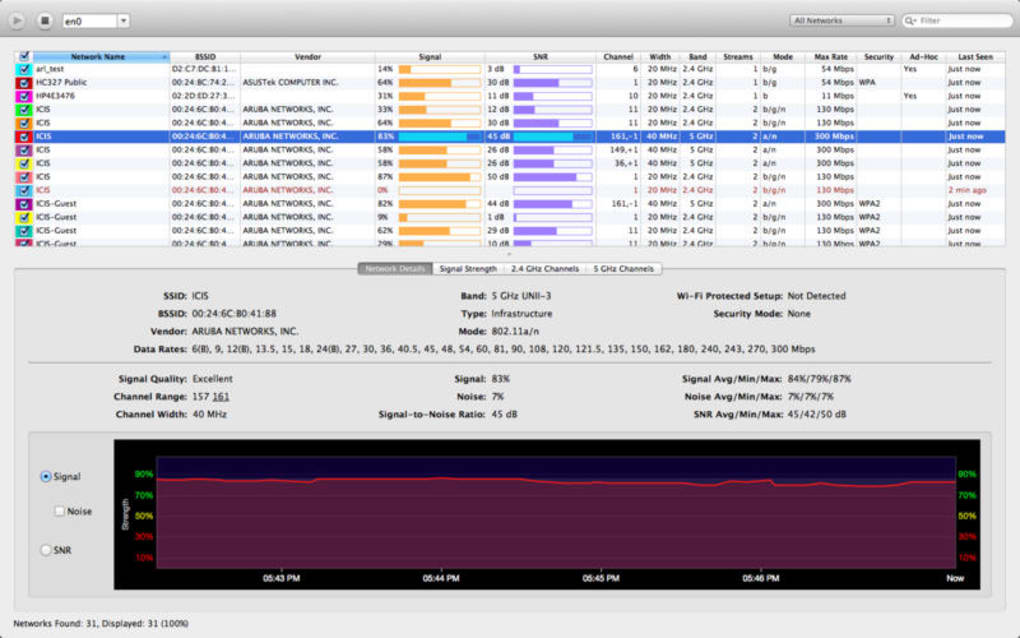
WiFi Explorer is a powerful Wi‑Fi scanning utility designed for both home users and IT professionals who need a clear, real‑time view of the wireless environment around them. By collecting detailed data from every visible access point, the app helps you pinpoint the root causes of connectivity problems—whether they stem from channel overlap, excessive noise, weak signal strength, or misconfigured security settings. The intuitive interface displays essential information such as SSID, BSSID (MAC address), device manufacturer, RSSI (signal strength), noise floor, operating band, channel, and encryption type, allowing you to make informed decisions about router placement, channel selection, and firmware upgrades. Because WiFi Explorer can filter and sort networks by any attribute, you can quickly isolate problematic hotspots, compare competing networks, and verify that your own router is broadcasting on the optimal channel. The tool also supports exporting scan results for further analysis or for sharing with support teams, making it an indispensable companion for anyone looking to maintain a fast, reliable, and secure wireless network.
Key Features
- Comprehensive Network Details: Shows SSID, BSSID, vendor, RSSI, noise level, channel, band (2.4 GHz/5 GHz), and security protocol for each detected network.
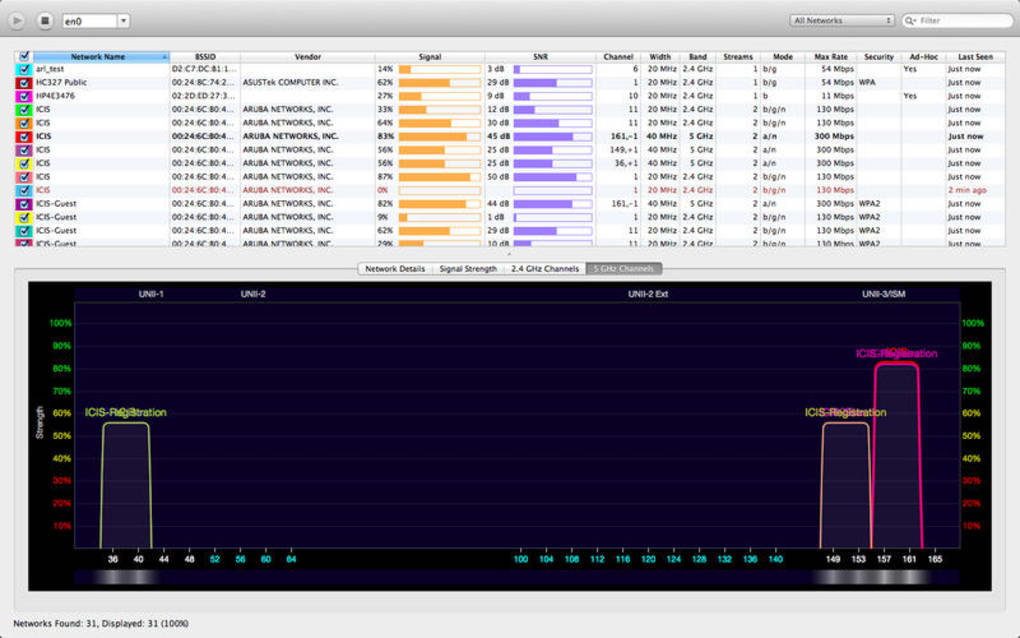
- Channel Overlap Detection: Highlights overlapping channels and suggests the best non‑conflicting channel for your router.
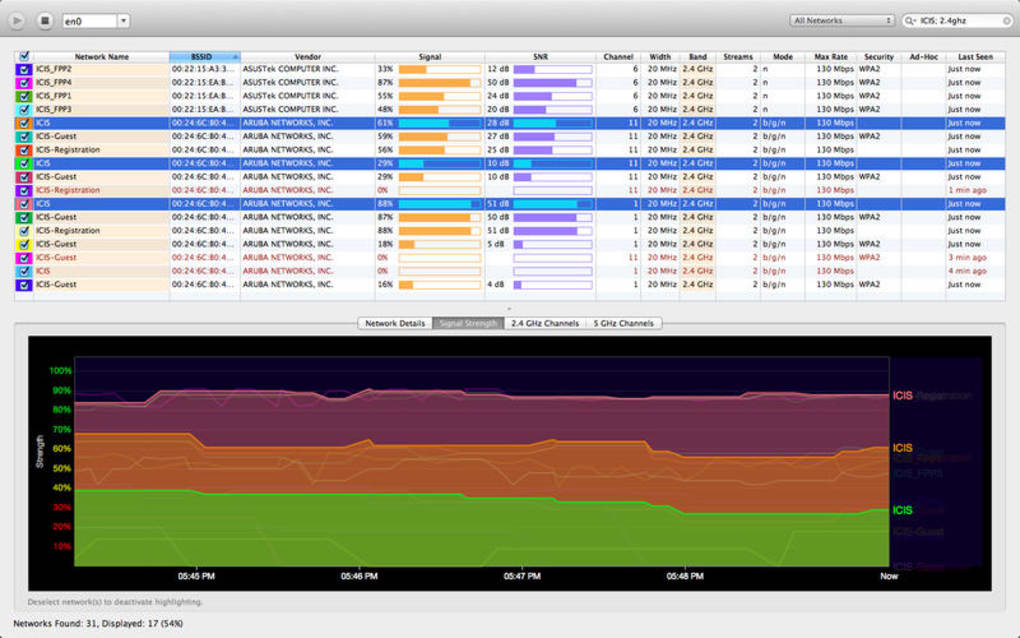
- Signal Quality Graphs: Real‑time visual graphs of signal strength and noise floor help you spot weak spots instantly.
- Filtering & Sorting: Filter by security type, manufacturer, band, or signal strength; sort columns to prioritize the most relevant data.
- Export & Reporting: Export scan results to CSV or JSON for documentation, troubleshooting tickets, or further analysis.
- Live Updates: Automatic refresh every few seconds keeps the list current as devices appear or disappear.
- Security Auditing: Quickly identify open networks, WEP, WPA, WPA2‑PSK, WPA3, and see if any rogue APs are broadcasting.
- Device Compatibility: Native apps for macOS, Windows, and mobile platforms (iOS/Android) ensure you can scan from any environment.
Installation, Usage & Compatibility
Getting WiFi Explorer up and running is straightforward, regardless of whether you prefer a desktop or mobile experience. For macOS and Windows, download the installer from the official website or the appropriate app store. The installer is signed with a trusted certificate, guaranteeing a secure and malware‑free installation. After launching the installer, follow the on‑screen prompts: accept the license agreement, choose the installation folder (default is fine for most users), and click “Install.” Once the process finishes, you’ll find WiFi Explorer in your Applications (macOS) or Programs (Windows) menu.
On mobile devices, open the App Store (iOS) or Google Play Store (Android), search for “WiFi Explorer,” and tap “Install.” The app requires location permissions to access Wi‑Fi hardware; granting these permissions is mandatory for the scanner to function correctly. After installation, launch the app and grant the required system permissions. The first scan begins automatically, presenting a list of nearby networks within seconds.
Compatibility: WiFi Explorer runs on macOS 10.14 or later, Windows 10 (64‑bit) and newer, iOS 13 or later, and Android 8.0 or later. The desktop version leverages the native Wi‑Fi chipset APIs for accurate RSSI and noise measurements, while the mobile version uses the operating system’s location‑based Wi‑Fi scanning APIs. Minimum hardware requirements include a Wi‑Fi adapter that supports 2.4 GHz and 5 GHz bands; most modern laptops and smartphones meet this criterion out of the box. For best performance, keep the app updated—automatic updates are delivered through the respective app stores, ensuring you always have the latest channel‑mapping algorithms and security fixes.
Pros & Cons
Pros
- Intuitive UI that presents complex data in an easy‑to‑read format.
- Rich set of metrics (signal, noise, channel, security) for thorough analysis.
- Cross‑platform availability (macOS, Windows, iOS, Android).
- Export options for CSV/JSON make reporting simple.
- Free basic version with optional paid upgrade for advanced features.
Cons
- Advanced features (historical logging, deep packet inspection) require a paid license.
- Mobile scanning may be limited by OS‑level restrictions on signal strength details.
- Requires Wi‑Fi adapter hardware that supports both 2.4 GHz and 5 GHz bands.
Frequently Asked Questions
Is WiFi Explorer free to use?
WiFi Explorer offers a fully functional free tier that includes basic scanning, channel analysis, and export to CSV. A premium license unlocks advanced features such as historical logging, detailed heat‑maps, and priority support.
Can WiFi Explorer detect hidden (SSID‑masked) networks?
Yes, the scanner reveals hidden networks by displaying their BSSID, signal strength, and other metadata even when the SSID is not broadcast. The SSID column will show “Hidden Network” until you manually associate with it.
What does the “noise” value indicate?
Noise represents the background radio frequency interference measured in dBm. A lower (more negative) noise floor indicates a cleaner environment, while higher noise can reduce effective throughput even if signal strength looks strong.
How often does WiFi Explorer update its scan list?
The default refresh interval is 5 seconds, but you can adjust it in Settings to suit your needs. Faster refresh provides near‑real‑time data, while longer intervals conserve battery on mobile devices.
Is my data safe when I export scan results?
Exported files are saved locally on your device in plain CSV or JSON format. WiFi Explorer does not upload any scan data to external servers unless you explicitly use the “Share” feature, which respects your privacy settings.
Conclusion & Call to Action
WiFi Explorer delivers a robust set of tools for anyone who needs to understand, diagnose, and improve their wireless environment. Whether you’re a casual home user frustrated by dead zones, a small‑business owner optimizing office coverage, or an IT specialist troubleshooting complex deployments, the app’s detailed metrics, clear visualizations, and cross‑platform support make it a go‑to solution. The free version provides enough functionality to get started, while the premium upgrade unlocks professional‑grade features for power users. Ready to take control of your Wi‑Fi performance? Download WiFi Explorer now and start scanning your network for free, securely, and instantly.







